
HTTPS for Localhost Development
No. 21
For most applications, spinning up HTTP for localhost development is fine, but what if you need HTTPS for things such as secure cookies or HTTPS-only headers? Let's explore how to use Caddy to make HTTPS for localhost development super easy.
The good news
The good news is that by using Caddy, you can set up HTTPS for localhost development without any changes to your application code.
You read that correctly. No need to modify your application code. 🙌
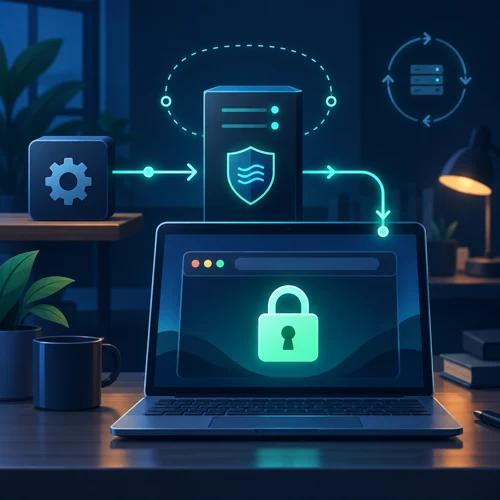
The way this works is that we're going to run Caddy as a reverse proxy in front of your application, so all requests to 'localhost' will be intercepted by it and served over HTTPS.
Installing Caddy
We're assuming that you're using a Mac for development. If you're using a different operating system, you can still use Caddy but the installation process may vary.
brew install caddy
Setting up Caddy
To set up Caddy as a reverse proxy, you'll need to create a 'Caddyfile' in your project directory. We'll use the 'internal' TLS provider to generate a self-signed certificate, and use port 8443 to avoid needing elevated privileges to bind port 443. The below example assumes your application is running on port 8080; change the port number if your application is running on a different port.
Let's name our file: Caddyfile.dev
https://localhost:8443 {
	tls internal

	reverse_proxy 127.0.0.1:8080
}
How it works
When you run Caddy with the 'Caddyfile' above, it will listen on port 8443 and serve HTTPS for requests to 'localhost'. All requests will be forwarded to your application running on port 8080. Caddy will supply your app with an X-Forwarded-Proto: https header so your app can determine the protocol used by the client is HTTPS.
Let's test it
Start up your app the normal way.
For example, if your app is written in Go like most of ours, you can start it with the following command:
go run .
Start up Caddy
Make sure your app is running, then start Caddy from the same directory as your Caddyfile with the following command:
caddy run --config Caddyfile.dev --adapter caddyfile
Note: Caddy automatically creates a local certificate and on first run it may request your macOS password to trust its local certificate authority.
View in your browser
To test that Caddy is working as expected, you can visit https://localhost:8443 in your browser. If you see a warning about the self-signed certificate it likely means that Caddy's local certificate authority did not properly install or is not trusted by your browser.
Conclusion
Congratulations! You now have a self-signed HTTPS certificate for your localhost development environment. You can use this certificate to test HTTPS locally without needing to set up a full TLS certificate. Hope this helps!
Cheers 🥂